Free
Free
A practical starting point for a single remote server workspace. No credit card required.
1 server connection
- File explorer and editor tabs
- Browser terminal access
- Robbie built-in help included
Docker Explorer
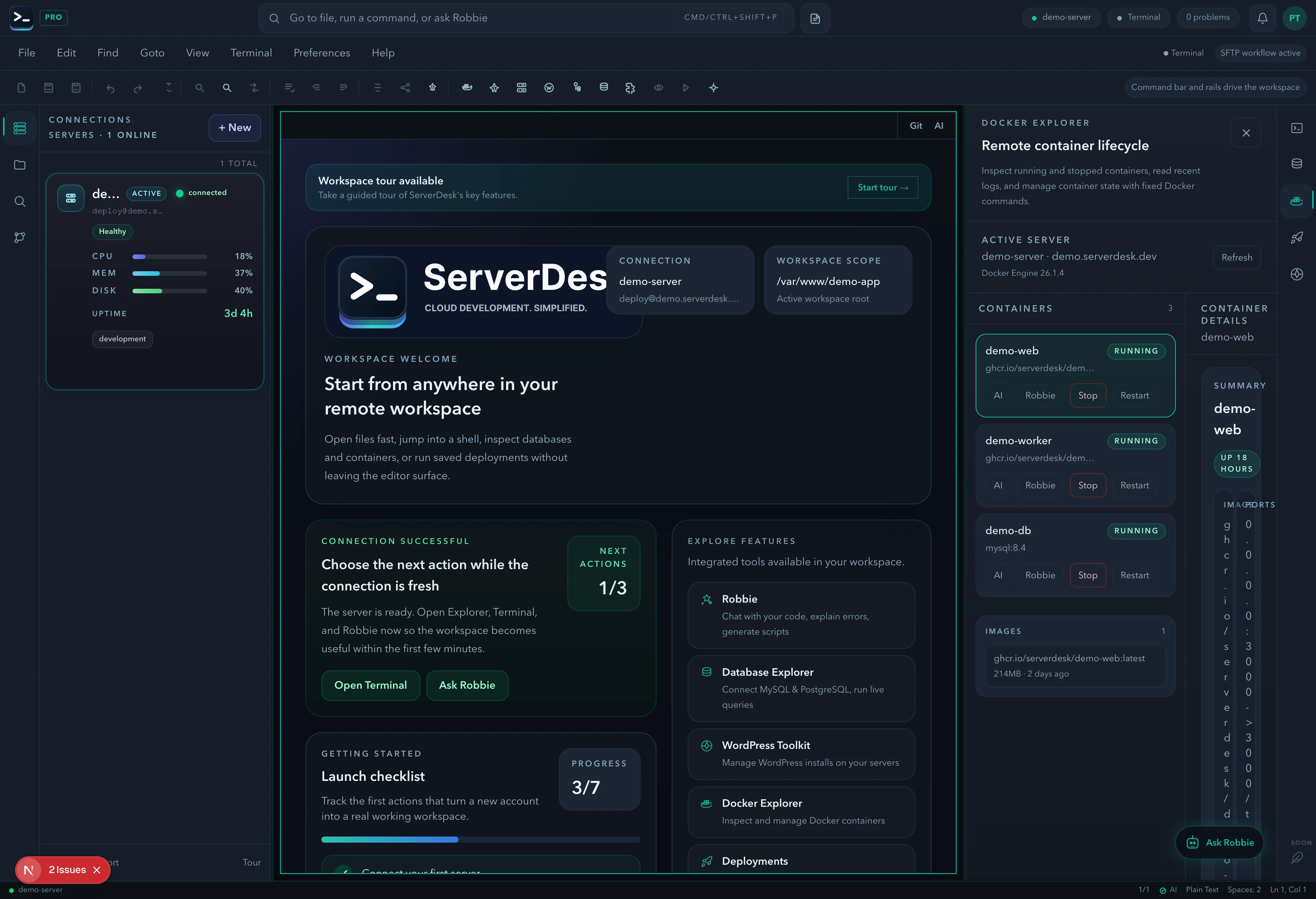
The Docker Explorer panel gives you a live view of your containers, logs, and service state directly in the ServerDesk workspace — no docker CLI, no SSH tunnel, no separate management tool.
CONTAINER ID IMAGE STATUS PORTS
a3f2b1c9d8e7 nginx:latest Up 3 days 0.0.0.0:80->80/tcp
b7e4a2f1c3d6 mysql:8.0 Up 3 days 3306/tcp
c1d5e9f2a4b8 node:20 Exited (1) 4m -
› Restarting container c1d5e9f2a4b8 ...
Capabilities
See all running and stopped containers with their image, uptime, port mappings, and current state at a glance.
Tail container logs in real time directly from the panel — useful for debugging a misbehaving service without opening a full terminal session.
Control container lifecycle from the browser. Restart a crashed service or stop a container while keeping other work open.
Inspect ports, environment variables, volumes, and network configuration for any container.
Use the Docker panel for quick operations and switch to the terminal for complex docker-compose or scripted workflows.
Container state changes are surfaced in the workspace notifications centre so nothing goes unnoticed.
Use cases
Concrete workflow
Step 1
Open Docker Explorer on the active server and confirm which containers are healthy, stopped, or restarting.
Step 2
Inspect logs or restart the failing service from the panel without losing the rest of the workspace.
Step 3
Ask Robbie to explain a Docker log or switch to Terminal for docker-compose or deeper runtime checks.
See it in action
See running and stopped containers, tail live logs, restart a crashed service, and inspect ports and environment variables — all from a browser panel next to your editor.
Pricing
ServerDesk pricing is designed around the workflow teams actually buy: how many servers they need to manage, how many people are involved, and when Robbie analysis, monthly AI credits, and safer review workflows become valuable.
Free
A practical starting point for a single remote server workspace. No credit card required.
1 server connection
$9/month
For freelancers and maintainers handling a few active server environments.
3 server connections
$19/month
For developers and operators who need deeper AI-assisted server work, deployments, and source control.
10 server connections
$39/month
For power users managing more environments with a higher monthly AI allowance and priority support.
Unlimited server connections
$79/month
For agencies managing many client environments with higher monthly AI usage and account oversight.
Unlimited server connections
Explore the rest of the ServerDesk workspace.