SFTP and SSH
SFTP and SSH file management with a browser-first editing workflow
ServerDesk turns remote file work into a cleaner browser-based flow with directory browsing, downloads, safe uploads, terminal access, and editor tabs.
Why teams land here
Instead of treating SFTP and editing as separate jobs, the workspace keeps both in one place. Teams can inspect the affected folder, open the target file, check logs in the terminal, and use AI guidance to plan a safer patch before touching production.
Built for
- Server maintainers
- Support engineers
- WordPress and PHP agencies
AI assistant in this workflow
- Inspect a remote file before you change it, explain what it does, and highlight risky sections
- Suggest command sequences for permissions, caches, deploy checks, and config validation
- Review a planned patch, compare file versions, and propose a rollback checklist
Concrete workflow
What this looks like in the first session
Each workflow page now maps to the actual sequence a customer follows after signup rather than broad product claims.
Step 1
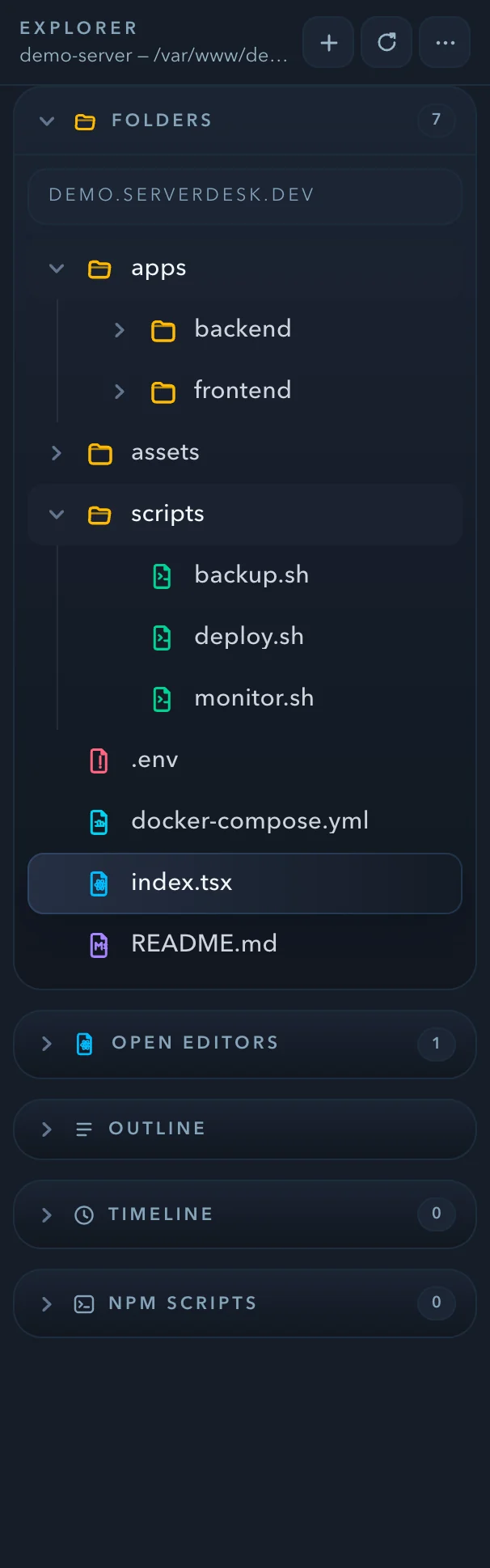
Browse to the project folder over SFTP and confirm you are in the correct site or environment.
Step 2
Open the file, review it, and use download or upload actions when you need to move assets safely.
Step 3
Check permissions or related logs in Terminal before saving the edited file back to the server.
See it in action
SFTP file management with a real editor beside it
Browse remote folders, open files directly in Monaco, download assets safely, and use terminal to check permissions — everything in the same browser session.
Related pages
Explore the browser-first server workspace from pricing, support, workflow, and team angles.